
A Notificator Dashboard for the Browser
The Notificator web dashboard is now available as a public beta for account setup, API keys, notifications, and connected device management.
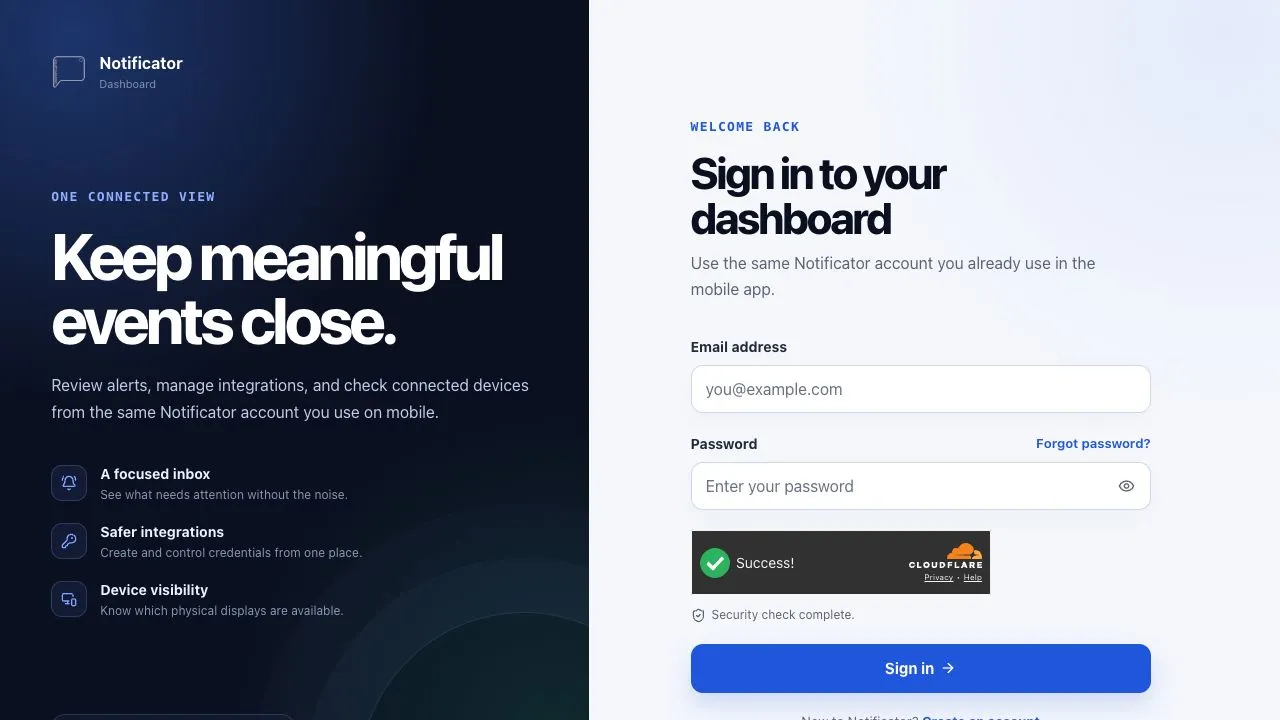
Notificator now has another place to begin: the web dashboard.
The dashboard is a public beta for people who want to create a Notificator account, manage integrations, read connected notifications, or keep an eye on their devices without installing the mobile app. It uses the same account and connected data as the mobile app, so you can move between the two whenever it is useful.
Start in the browser
Registration is available directly at dashboard.notificator-project.com. Existing users can sign in with the credentials they already use for Notificator.
The dashboard is useful even when a phone is not part of the setup. It can create the API keys needed by the WordPress Plugin, Strapi Extension, Public API, Astro integration, and Node.js SDK. Active keys can be copied, reviewed, edited, and revoked from one place.
A focused shared inbox
Connected notifications can be searched and filtered by their useful context, including CMS and non-CMS sources. Open an alert to review its fields and raw payload, mark it read or unread, or lock important history so it is not removed by bulk cleanup.
The dashboard also shows a small toast when a new notification arrives while the dashboard is open. It is deliberately an open-dashboard experience for now, not background browser push. Mobile push remains available through the Notificator iOS app when you want alerts away from your desk.
Keep an eye on devices
The Devices area can add supported hardware, show reported connection status, pause or resume delivery, remove paused devices, and request signed Base or Touch firmware updates. Live status and commands depend on a working connection to the user’s own HiveMQ Cloud setup; the dashboard is not a separate uptime service.
Choose where to save your connection
Updated 3 September 2026. Session-only storage remains the default: connection metadata stays in the browser and the password lasts for the current tab session. Where account saving is enabled, you can choose Save to my account in Settings → Device connection to keep an encrypted copy of your HiveMQ configuration. The dashboard can restore that connection in another signed-in browser, while leaving an existing session connection in place. Testing a connection does not save it.
You can remove the account copy, switch back to session-only storage, or clear the current browser session separately. Removing the account copy does not erase credentials already held by another browser or device. Your broker remains yours. The saved configuration is designed for future access from the plugin and mobile app through an authenticated API; those clients still use their separately configured credentials today.
The app and dashboard have different strengths
The dashboard is the quickest route for account administration, API keys, notification history, and device overview. The mobile app remains the place for mobile push permission, on-the-go alerts, and immediate brightness or volume controls.
WordPress dashboard alerts and Strapi panel activity can still stay local inside their own admin areas without an account. The web dashboard is a shared inbox for events that integrations send through a connected API key.
The dashboard guide covers the current beta behavior, setup, security boundaries, MQTT configuration, notifications, and OTA controls. Features will continue to evolve as we learn from real usage.
Community discussion
Continue the conversation.